
Printing a request
You can only print a request once it has been sent to the Chamber of Commerce. Once your request is approved, it gets the status Ready to print and can be printed.
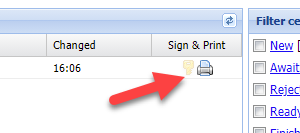
In the Sign & Print column, click the printer icon of the request you want to print:
On the next screen, click the Print button to download the PDF:
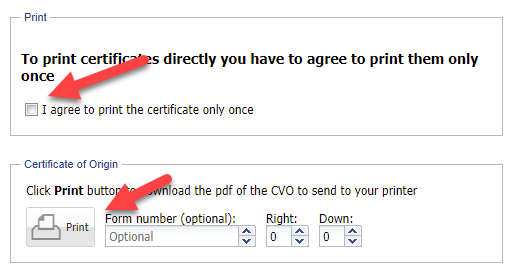
Before you can download the PDF, you must promise to only put the request into circulation once.
To make sure the text of your request fits neatly on the blank forms, make sure the margins and scaling are not adjusted.
